
AI Agents Make the Desktop App More Interesting
One of the larger trends behind Gemini for Windows is the growth of AI agents.
Traditional AI chat usually works like this:
You ask a question.
The AI responds.
You ask another question.
An AI agent is designed to go further by working through a larger objective that may involve multiple steps.
Instead of simply answering a question, an agent may be able to help plan, organize, research, or carry out parts of a task.
That makes the Windows app potentially more significant than simply giving Gemini its own desktop icon.
Over time, desktop AI assistants may increasingly become places where people delegate portions of their work instead of merely asking isolated questions.
Advanced agent features may require particular Google AI plans, and Google can change plan availability and usage limits over time.
Before subscribing specifically for one feature, check Google’s current Gemini plan and usage-limit information.
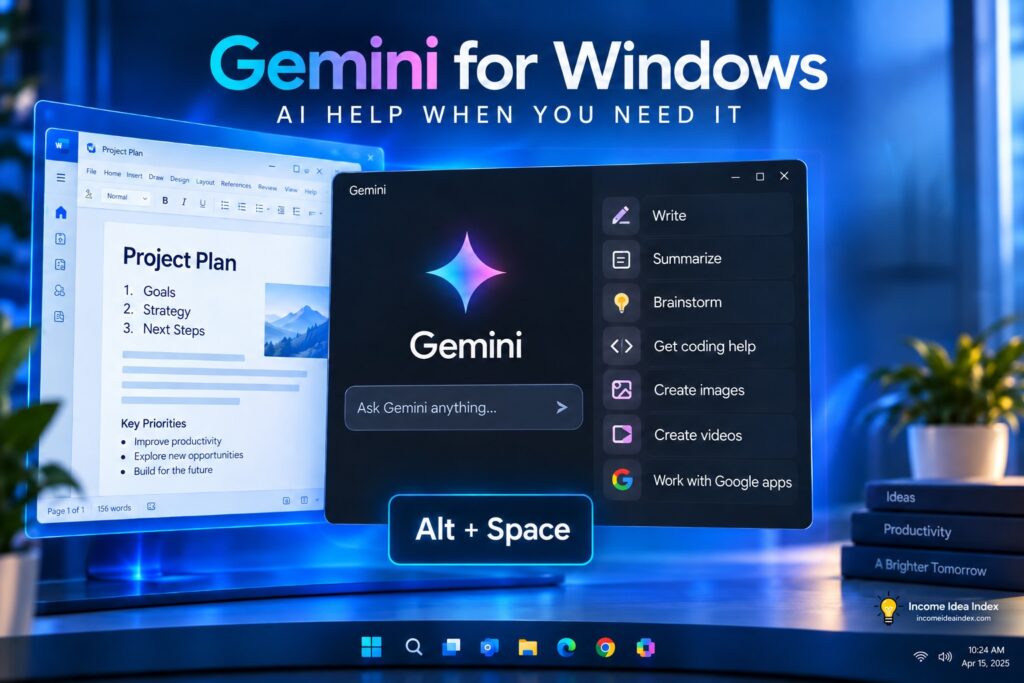
You Can Create Images With Gemini
Gemini also includes image-generation capabilities.
That means users can describe an image and have Gemini create it with AI.
Potential uses include:
- Presentation graphics
- Concept images
- Social-media visuals
- Advertising concepts
- Mockups
- Creative brainstorming
- Early design ideas
For creators and small businesses, the biggest benefit may again be convenience.
You could be preparing a presentation, realize you need a visual, create a concept with Gemini, and continue working without moving between several unrelated services.
Availability and usage limits can vary by plan, so it is important to check the current limits if image generation is one of the main reasons you are considering a paid subscription.
Gemini Can Also Generate Video
Google has also been expanding AI video generation within the Gemini ecosystem.
Video creation is generally a more resource-intensive AI feature, so access and limits can differ from ordinary Gemini chat.
Depending on the plan and current availability, paid Google AI tiers may provide access to video-generation capabilities that are not included with basic free use.
This distinction matters.
A feature appearing in a Gemini demonstration or announcement does not necessarily mean every Gemini user receives unrestricted access to it.
AI subscriptions increasingly differ based on:
- Available models
- Usage limits
- Agent capabilities
- Image generation
- Video generation
- Context limits
- Advanced tools
For that reason, check the current Google Gemini plan information before paying primarily for one specific capability.
Is Gemini for Windows Free?
You can use Gemini without purchasing a Google AI subscription.
However, free access does not mean every Gemini feature is included at the same level.
Google offers different levels of AI access, and paid plans can provide higher limits or additional capabilities.
The important distinction is between the Windows app itself and the Gemini features available to your account.
Installing Gemini on Windows does not automatically unlock every premium AI feature.
Some capabilities may be available for free.
Others may require one of Google’s paid AI plans.
Limits can also change over time.
For that reason, it is better to check Google’s current plan page than to choose a subscription based on an old usage number or feature list.
Gemini for Windows vs. Using Gemini in a Browser
If Gemini already works in your browser, do you really need the Windows app?
Not necessarily.
If you only use Gemini occasionally, the web version may already do everything you need.
The dedicated Windows app becomes more useful when Gemini is part of your normal workflow.
The browser may be enough if:
- You use Gemini only occasionally
- You already keep Gemini open in a pinned tab
- You do not need immediate desktop access
- You prefer keeping AI activity inside your browser
The Windows app may be better if:
- You use Gemini frequently throughout the day
- You want quick Alt + Space access
- You regularly switch between Gemini and other programs
- You use Gemini for work or productivity
- You want a dedicated AI workspace
- You rely heavily on Google services
The important difference is not always raw capability.
It is friction.
A tool that is immediately available is more likely to become part of your daily workflow than one you have to repeatedly go looking for.
How Freelancers and Small Businesses Could Use Gemini for Windows
For Income Idea Index readers, the most important question is not whether Google released another AI product.
It is whether that product can help someone do useful work.
Here are several practical examples.
Prepare Client Work Faster
A freelancer could use Gemini to help:
- Organize research
- Outline a project
- Draft client communication
- Summarize background material
- Brainstorm deliverables
- Prepare questions before a meeting
AI should not replace subject expertise.
But it can reduce the time required to move from a blank page to a useful starting point.
Create Marketing Ideas
A small business could ask Gemini to brainstorm:
- Promotions
- Social posts
- Email subject lines
- Seasonal campaigns
- Customer FAQs
- Blog topics
- Video ideas
- Product-description angles
A human can then choose the strongest ideas, refine them, verify any claims, and adapt them to the business.
Organize Information From Google Apps
Businesses that already use Gmail and Google Drive may find Gemini’s integration with Google services particularly useful.
Instead of manually hunting through multiple sources, Gemini may be able to help locate, summarize, or organize information connected to a project.
Exactly what Gemini can access depends on your account, permissions, and enabled features.
Generate Early Creative Concepts
AI image and video tools can help people explore creative directions before committing to final production.
A creator could test multiple visual ideas.
A business owner could explore advertising concepts.
A freelancer could develop rough mockups before discussing a direction with a client.
AI-generated media still needs careful review, particularly when it will be used commercially.
Check branding details, factual accuracy, licensing considerations, and any intellectual-property concerns before publishing.
Build AI-Assisted Services
Freelancers can also incorporate tools such as Gemini into the process behind services they sell.
The key is to sell a useful outcome rather than treating access to an AI tool as the business itself.
The same principle applies to the opportunities covered in our guide to realistic ways beginners can use ChatGPT to make money.
AI may speed up portions of the work.
Your judgment, expertise, editing, customer understanding, and final quality are still major parts of the value you provide.
How to Install Gemini on Windows
Google provides the Windows version through its official Gemini desktop page.
To get started:
- Go to the official Gemini desktop download page.
- Choose the Windows version.
- Download the installer.
- Open the installer on your PC.
- Follow the installation instructions.
- Open Gemini.
- Sign in with your eligible Google Account.
After installation, use Alt + Space to quickly open Gemini.
You can also review Google’s official Windows installation and requirements documentation if you have trouble installing or signing in.
Should You Install Gemini for Windows?
If you already use Gemini regularly on a Windows computer, the new app is worth considering.
The strongest reason is not that the desktop app suddenly makes Gemini capable of things that were impossible before.
It makes Gemini easier to reach while you are already working.
That matters.
AI tools become more useful when they fit naturally into an existing workflow instead of constantly pulling you away from it.
If you rarely use Gemini, there is no urgent reason to install another program simply because it is new.
But if you regularly use AI for writing, research, brainstorming, coding, planning, business tasks, or creative work, easier desktop access could make Gemini considerably more convenient.
Frequently Asked Questions
Is there an official Gemini app for Windows?
Yes. Google announced the official Gemini app for Windows on September 10, 2026.
Does Gemini work on Windows 10?
Yes. Google’s current requirements support Windows 10 or later.
Does Gemini work on Windows 11?
Yes. Windows 11 is supported.
How much RAM does Gemini for Windows require?
Google currently lists 8 GB of RAM or more.
How much storage does the Gemini Windows app require?
Google currently lists at least 200 MB of available storage for installation.
What is the Gemini Windows keyboard shortcut?
Press Alt + Space to quickly open Gemini.
Do I need a Google Account?
Yes. You need an eligible Google Account to use Gemini. Personal accounts are supported, while work and school access can depend on administrator settings.
Can Gemini for Windows create images?
Gemini includes AI image-generation capabilities. Usage limits and access to particular features can depend on your account and Google AI plan.
Can Gemini generate videos?
Google offers AI video-generation capabilities within Gemini for eligible users and plans. Availability and limits can change, so check Google’s current plan information before subscribing for this feature.
Do I have to pay to use Gemini for Windows?
No. Gemini has free access available, although some advanced capabilities, higher usage limits, and premium features may require a paid Google AI plan.
The Bottom Line
The arrival of Gemini for Windows is another sign that AI assistants are moving beyond browser-based chatbots.
Google wants Gemini to sit closer to the work people are already doing.
The Alt + Space shortcut makes basic AI assistance easier to reach. Connections with Google’s ecosystem can make Gemini particularly useful for people who already rely on services such as Gmail and Drive. Image and video generation expand its creative uses, while increasingly agentic AI capabilities point toward a future where desktop assistants handle larger portions of a task rather than simply answering prompts.
Not every Windows user needs another AI app.
But for people who already use Gemini, the desktop version makes considerably more sense.
The most useful AI tool is rarely the one with the longest feature list.
It is the one that helps you finish useful work with less friction.