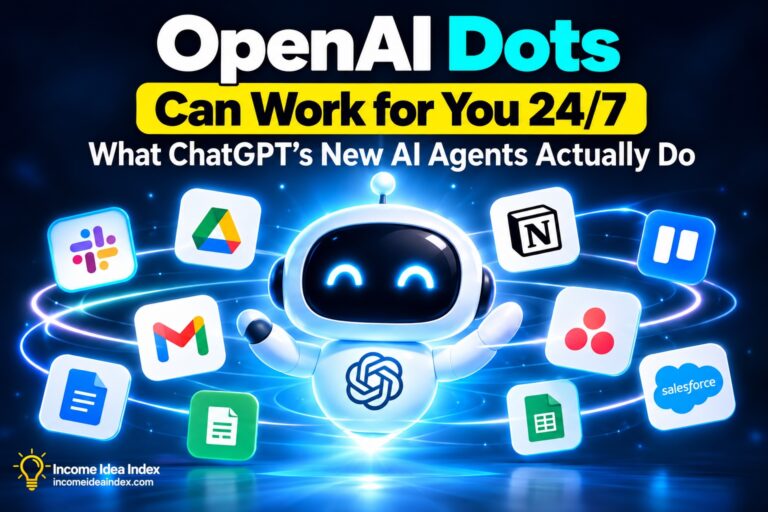


ChatGPT for Word is now officially available, bringing OpenAI’s AI assistant directly into Microsoft Word instead of requiring you to keep switching between a document and a separate ChatGPT window.
OpenAI launched the Word integration on September 17, 2026. It appears as a sidebar inside Word and can work with the document you already have open.
That means you can ask ChatGPT to help draft content, summarize a long document, rewrite selected passages, reorganize sections, adjust headings and formatting, and identify unclear or inconsistent language without leaving Word.
Perhaps more importantly, ChatGPT for Word is available on every ChatGPT plan, including Free, although normal plan and usage limits still apply.
What Is ChatGPT for Word?
ChatGPT for Word is OpenAI’s official Microsoft Word integration.
After installing the ChatGPT Microsoft add-in, ChatGPT opens in a sidebar beside your Word document.
You can then give it instructions while continuing to work on the document itself.
For example, instead of copying several paragraphs from Word, opening ChatGPT in your browser, asking for a rewrite, copying the answer, and returning to Word, you can select the section and request the change from the sidebar.
The same OpenAI add-in also provides ChatGPT access in Excel and PowerPoint, so you do not need to install a separate add-in for each Microsoft application.
This is another example of AI moving away from being a separate destination and becoming part of the software people already use.
Google took a similar approach by making its AI assistant easier to reach through the new Gemini for Windows desktop app.
Adobe is doing something similar with the expanding AI capabilities inside Acrobat, which can now help people work with reports, PDFs, presentations, and other document-heavy workflows through Adobe Acrobat AI.
The pattern is becoming clear:
AI tools increasingly want to meet you where the work is already happening.
What Can ChatGPT for Word Actually Do?
The Word integration is designed primarily around drafting, editing, understanding, and reorganizing documents.
According to OpenAI, ChatGPT for Word can work with the document you currently have open and help with several common tasks.
Turn notes into a first draft
You can give ChatGPT rough notes or source material and ask it to turn them into something more structured.
That could include:
- A memo
- Proposal
- Report
- Client document
- Outline
- Executive summary
- Internal update
- First draft of a longer document
This could be particularly useful when the hardest part of the project is moving from scattered information to an organized starting point.
AI does not have to produce the final version to save time.
Sometimes creating a usable first draft is enough to eliminate the blank-page problem.
Summarize a Long Document
If you are dealing with a long report, proposal, briefing, or other Word document, ChatGPT can summarize what is already there.
You could ask for:
- A short summary
- Executive summary
- Key points
- Main recommendations
- Major risks
- Action items
- Explanation of a complicated section
That can help when you need to understand a document quickly before deciding where to spend more attention.
The important distinction is that a summary is still an AI-generated interpretation.
For important work, you should compare key claims against the original material rather than assuming every detail survived the summarization process.
That is especially relevant given the broader problem of AI errors appearing in professional work. A polished summary can still omit context or misstate an important detail.
Rewrite Selected Text
One of the more practical Word features is the ability to select a specific passage and tell ChatGPT what you want changed.
For example:
- “Make this easier to understand.”
- “Shorten this without removing the main argument.”
- “Rewrite this for a customer instead of an internal team.”
- “Make the tone more professional.”
- “Remove unnecessary repetition.”
- “Explain this for someone who is new to the subject.”
OpenAI recommends selecting the exact text you want changed and explaining anything that should remain untouched.
That matters because vague instructions can produce broader changes than you intended.
The more specific the request, the easier it is to review the result.
Reorganize a Document
ChatGPT can also help restructure material that already exists.
Imagine you wrote five pages of notes but the ideas arrived in the wrong order.
Instead of manually moving every paragraph around, you could ask ChatGPT to suggest a clearer structure.
It can help reorganize:
- Sections
- Headings
- Numbering
- Supporting points
- Repetitive material
- Transitions between ideas
For larger changes, OpenAI recommends asking ChatGPT to propose an outline or explain the changes before altering the document.
That is a useful habit.
You do not always want an AI tool immediately rewriting ten pages of work.
Sometimes it is better to see the proposed structure first and decide whether the approach makes sense.
Find Unclear or Inconsistent Writing
ChatGPT for Word can also act as another review layer.
You can ask it to identify:
- Unclear language
- Repetition
- Inconsistent terminology
- Awkward transitions
- Sections that need more explanation
- Differences in tone
- Places where an argument feels incomplete
This can be useful for documents that have gone through several rounds of editing.
When you have read the same page twenty times, it becomes surprisingly easy to stop noticing problems.
An AI review can give you another perspective before you send or publish the document.
But it should remain another perspective—not the final authority.
Why Putting ChatGPT Inside Word Matters
None of these individual capabilities are completely new.
People have already been using ChatGPT to draft, summarize, edit, brainstorm, and reorganize writing.
The bigger change is workflow.
Before this integration, a common process looked like this:
Word → copy text → ChatGPT → generate answer → copy answer → Word → edit again
Every switch is small.
But when you repeat that process dozens of times during a project, the friction adds up.
Putting the AI beside the document reduces that friction.
This is the same reason productivity often improves when useful tools become easier to access rather than simply becoming more powerful.
As discussed in our guide to productivity in 2026, the best technology is often the technology that removes unnecessary steps instead of creating another system you have to manage.
For people who already spend much of their workday in Word, this integration has the potential to do exactly that.